In the past few years, I have grown my interest and desire to begin and backing up my vast collection of physical media. Something that I've always been doing with CDs, but was a bit hesitant to do with DVDs and games. Well, as I found an external disc drive for sale (and a 5TB hard drive) at the electronic store last Christmas, I thought to myself that it was time to get serious. So after payment was done, I have done nothing more than going through my boxes of games and DVDs, and backing up almost all of it to my hard drive with various degrees of success and a bit of failure.
I will go through all the different formats that I have in this article and talk about my experiences with archiving them; what software that I will recommend to use and also why I go my way to preserve my physical collection.
Audio CDs (fre:ac)
My personal experience of ripping CDs is extensive. Ever since my introduction to the personal computer and Windows Media Player, ripping CDs has been somewhat of a pastime hobby for me. It was something that my dad and I would periodically do, whether it was ripping from his collection of CDs or going to the public library (the silent enemy of the recording industry) to loan CDs there and ripping those at home. This was well before Spotify entered our lives in 2012-13, so this was an exciting way to discover new music for me.
Alas, time moves on and both WMP and the .wma codec have shown their age. Despite having FLAC support in recent times, WMP is just an ancient dinosaur program that does most things really backwards compared to modern programs. Having badly optimized album art for the rips and having a separate location for metadata tags instead in the files themselves is not something that one should deal with anymore, despite its fine user-friendly UI.
As for WMAs, I was hesitant to take the task of re-ripping my then 400+ CDs (Now 700+) that I had ripped over the years (and also all of my parents' CDs) to FLACs. That was until 2023 when I found out that my Pixel 7 didn't natively supported WMAs. That turned out to be a good decision, and it also made me correct all the mistakes that the old files had during the re-ripping process.
There's a free open-source program called fre:ac, which I now use for ripping CDs. It's really straightforward. The program will detect the CD and what kind of album it is. Other than that, you can tinker with all its metadata before ripping to ensure that the info is correct to your preferences. For example, I like to have the songwriting credits for all of my files, and I would want to mark all the bonus tracks, so I know what the core of the album is. Fre:ac also let you choose what the output folder to the finished files should be, which is very convenient to organize everything. The other neat thing about fre:ac is the implementation of AccurateRip which determines if your CD is ripped perfectly or not. Very practical if your CD has scratches.
As for playing music on the computer, I would recommend Strawberry for Linux and foobar2000 for Windows (ugh...). Both are free to use and have a simple but functional UI.
DVDs (Handbrake + DVD Shrink + MakeMKV)
The process of a hundred years.
DVDs are obviously a different beast compared to CDs with how much more versatile they are (It's in the name). But that also means that their content isn't as streamlined and becomes a bit more complicated to navigate and preserve.
There's a million ways to go about with DVDs, from ripping them as ISO files, to just ripping the movie and nothing else. Personally, I want to have as much of the DVD preserved as possible, but as video files that I can view on anything. Computers, phones, TVs, etc.
For most operations, I use Handbrake. Another free software that is used to re-encode videos to a variety of different formats. It's a pretty handy program with a lot of options, like passing through Dolby/DTS audio, keeping subtitles, upscaling video and so on. Handy, but not enough. Sometimes, DVD extras are hidden in chapters or menus that Handbrake doesn't recognize. So to fix that, there's DVD Shrink. An old Windows program used to backup full DVDs as folders. You can also explore the content of a DVD and then re-author it, essentially picking what parts to keep from the original DVD so that you can re-encode the content later.
But even that has some problems like not reading and decrypting some discs (with wrestling DVDs being a weird sticking point), which is why I also use MakeMKV. A popular tool that preserves all audio and video tracks, metadata and chapter information in their as-is standard definition quality via MKVs.
I use all of these 3 programs to conjunction with each other. If one fails, the other should solve it and continue the process. And boy, is it a process. As said above, I try to preserve as much as possible which includes DVD extras, but the amount of extras is sometimes too much. Outtakes, making-of documentaries, production stills, montages with multiple viewing angles, easter eggs, the whole kitchen sink. Also doesn't help that some DVDs with multiple languages chooses to have separate video tracks for each audio language. There's also the PAL-speedup, but I've talked about that long enough.
It's a process that's much longer than how I would want it, but that's how it is.
Wii and GameCube (Homebrew + cleanrip/Wii Fusion Backup)
The best dumpers can just be the consoles themselves.
Everybody hacked the Nintendo Wii, despite the big N's best efforts. It wasn't uncommon back in the day to see it paired with a hard drive by its side and the Homebrew Channel installed on the home menu when it was turned on. And with the Homebrew Channel opens the functionality of the Wii. For the case of dumping games, there's the cleanrip utility. It's name is very self-explanatory, but it also does the one thing that you can't really do on other hardware - namely, dump Wii games.
Nintendo is probably most famous for their proprietary game formats, mostly with cartridges. It's pretty effective against piracy and with their switch to disc-based systems starting with the GameCube, they wouldn't stop that practice. GameCube discs (apart for being the size of a chocolate chip cookie) and later Wii discs were custom-designed by Nintendo with extensive proprietary technology to make them unreadable on a normal DVD drive. There exists some drives that can natively read Wii discs, but they are few and far between so the Wii itself (or Wii U for that matter) is the best option.
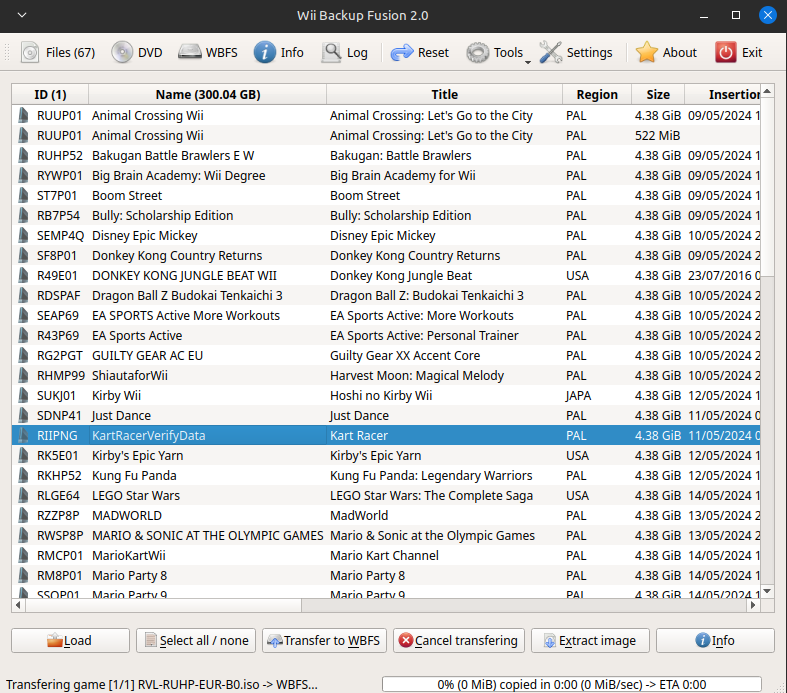
However, cleanrip does come with a caveat as it only dumps the games as full-blown ISO files. By that, I mean every ISO has all the unnecessary empty space from the disc included in them, resulting in a standardized file size of 4.4 GB for every game. That's not ideal (and rather insulting if, say, you were to back up a glorified SNES ROM-on-a-disc or something), but luckily, there are programs like Wii Fusion Backup (for Mac and Linux users) and Wii Backup Manager (for Windows users) that can shrink those ISOs into WBFS files.
Before WBFS:
After WBFS:
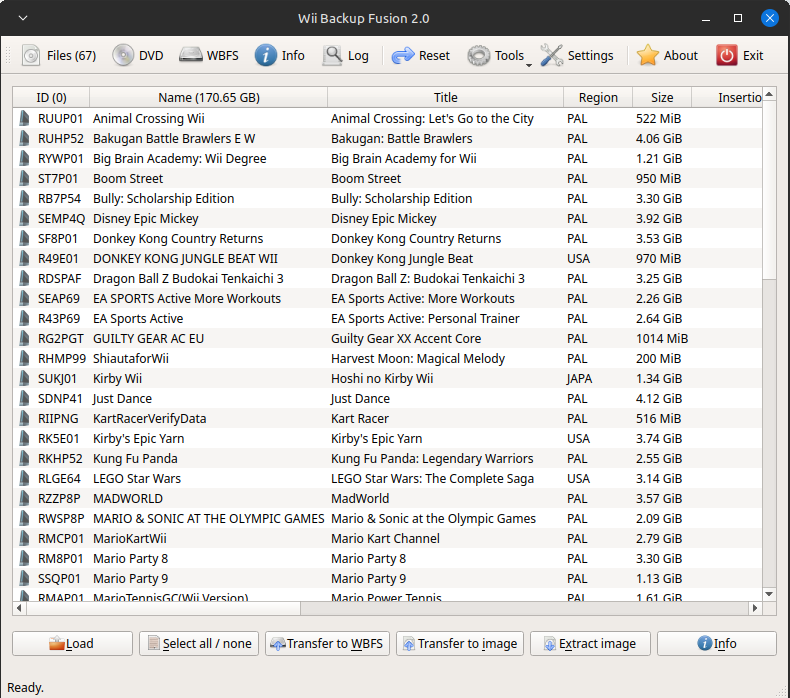
With WBFS files you save a good chunk of space and can now play these games on a Wii with a hard drive and USB Loader GX. You can also use USB Loader GX to install games onto the USB drive directly and play straight away. Good times for everyone.
If you are interested in hacking your Wii, then this guide is heavily recommended.
PSP (Custom Firmware)
A second verse, but same as the first.
The PlayStation Portable may go hand-in-hand with the Wii as tag team champions of all-time easily hackable consoles. Installing CFW (Custom Firmware) on the system will provide you with quality-of-life improvements to an aging handheld. For the purpose of dumping games, it's miraculously simple in spite of the weird disc format of UMDs. The CFW gives you options on what drive directory of the console that the PC will see via a USB connection. Directing it to the UMD drive (with a game or movie in it), you should see an ISO of the UMD that you can just copy over to your PC. Even better is copying the ISO over to the memory stick, afterwards. That's how I still play games on the PSP, as the UMD drive of mine is failing.
Simple and easy. Wish most media were like this.
PS2 (MPF/redumper + Imgburn/Brasero)
Gotta say. Having dumped these games onto a hard drive made me realize, how the console of origin sometimes betrays the fact if the discs are good or not. Because I managed to dump almost my entire collection of games perfectly, which I didn't think would be possible.
The PlayStation 2 was a console that I grew up with since childhood, and when you were a child, you were pretty dumb didn't know any better and unintentionally scratched your games (as well as your father's and sister's games). So it's pretty weird to see them in working capacity again. There's childhood games which doesn't play properly on my PS2, yet plays like wonders on PCSX2.
I was going to dust out Imgburn, until I discovered a different program called Media Preservation Frontend. MPF is a front-end for a command-line script called redumper which aims to do a complete 1:1 dump of a game, and for the most part, it works. However, I found that it had difficulties with blue CD-ROM disc games, so Imgburn was used instead and worked effortlessly. In essence, you can use any kind of disc-ripping tool. As long as the dump is good (which PCSX2 has a good verifying tool for), then all is good.
PS1 (Imgburn/Brasero + PSN + Internet places)
What I said above about CD-ROM games applies here. Well for me, at least. Assuming that dumping PS1 games would be relatively easy, the task soon turned into confusion, head-scratching, and frustration.
Simply put, my disc drive struggles a lot with CD-media that isn't audio CDs. MPF and Redumper wasn't playing ball with ripping CD-ROMs, so I used Imgburn again. Only to hit a roadblock with CDDA tracks and more scratched discs.
A bit of technical information: Since PS1 games were on CDs, it was possible to include uncompressed Redbook audio (also known as CDDA, Compact Disc Digital Audio) for music and other sounds via a mixed mode CD, which also means that you can play some PS1 discs in your stereo and listen to game music. That is a very cool feature, but it's also an issue. ImgBurn is not very good at making perfect dumps with mixed mode CDs. Case in point, my attempts at dumping the original Tomb Raider. Tomb Raider not only has the music as Redbook audio, but also the tutorial dialogue. The data track was a perfect dump, but not the audio tracks. I assumed that the game would still work fine, but the tutorial narration was not playing on its appropriate cues, meaning that dialogue would appear at random and end abruptly. Same thing with the music.
Researching on this issue, I found that only certain CD drives supports dumping mixed mode PS1 games 1:1, while most CD drives can't. This made me dread and ultimately abandon the prospect of dumping all of my games myself, only dumping the non-mixed mode CDs, but that wasn't the only problem.
Remember when I said that I had next-to-no issues with scratches on PS2 games? Turns out that many of these discs received much worse care and were more prone to scratching. To be fair, we are talking about old games with the majority of them being my dad's, and if blame is to be shared then I firmly believe that he too wasn't that kind to his games at that time. To be honest, this is where I just turned to the internet to find these game ISOs elsewhere. Some of my "undumpable" games I already own digitally, thanks to the PS Store on the PSP, while other games are mostly in the "gray" area which I obtained through other means.
If companies have a problem with that, then note this: Simply an issue of service.
PC (MPF + GOG.com + Good luck...)
This is where things get even more complicated and sometimes outright impossible. The latter sentiment outweighs the former, as I pretty much gave up at this point. Mainly because of the complex issues that plague old physical PC games.
I could only get like 4-5 games dumped over to my hard drive, because CD-ROM games would not budge again. Imgburn also wouldn't work for some reason, but that's not even the biggest issue. The anti-piracy DRM-infected discs have in ways sabotaged these games from being playable again on newer hardware. It really brings attention to why you can still find used physical PC games in droves for bargain bin prices, but can't necessarily play them. Some of the DRM in those discs are simply unsupported on modern Windows, and even if you managed to dump some games, you still have the issue of disc check that many (if not all) of these games have. Virtual mounts of ISOs are nice and all, but if the game launcher can't recognize them, then it's a waste of time.
It's right there that I gave up on PC games and went straight into GOG.com. GOG has since their inception been great at preserving and re-releasing classic PC games DRM-free, so you can buy games from their platform and install them on every computer possible - free of restrictions (#NotAnAd). Keep in mind that not all games on their storefront will work 100% out-of-the-box when attempting to play them on current PCs, but there are workarounds and patches by fans or the developers to ensure at least playability for the classics.
My Reasons for backing up physical media:
Now, all of this seems kind of excessive, especially in the days of streaming services and such. Even as a physical media collector, I didn't see the point of undertaking this project (besides ripping music CDs which I've done all my life). Well, it wasn't until last year when I discovered my reasons.
1. Physical media (and its hardware) has a lifespan
It sucks, but it's true. You have probably heard about it or maybe have it affected part of your collection. Like most consumer goods, physical media wasn't really designed for much longevity. It's sort of incredible that so much have survived throughout the years. Nevertheless, discs are soon to die and I'm not just talking about scratches, as disc rot is also an issue that's becoming more prevalent. Hell, I've just had a Wii U game crap out on me, despite the disc looking totally fine. Sure, one can say the same thing about hard drives being prone to fail, but data on hard drives is easier to keep track of and more transferable to backups. And as I have mentioned above, hardware (and by that, I mean especially video game consoles) is also a failing element. As much as I like playing games on 'Le Original Hardware', disc drives not reading and such makes it necessary to have and preserve it through emulation.
2. Clear convenience
A year ago, I moved from my apartment back to home where I don't have the luxury of having my massive collection set up, so most of it are still in boxes. This makes it difficult to go through my backlog or just wanting to play some game or watch a movie that I own. This fixes the problem and opens up for more benefits. TV shows with only 3 or 4 episodes per DVD can now be binged in one setting; movies and music can now be transferred over to hard drives, phones and TVs with more ease of access; and gaming is now just the best thing ever. At the beginning of the year, I went over to visit an old friend with a laptop, some controllers and my hard drive with my whole PS2 collection, and we had a total blast playing SW: Battlefront II, Burnout Revenge and Bomberman with close-to-perfect performance throughout. Now, just imagine that but with the hassle of 'Le Original Hardware' and all of its components.
3. Chance to clear out (and not miss* a thing)
This is where the inevitable adult truth comes in and tells me to grow up and stop with this hobby of collecting. OK, not really, but I'm sure that we've all been there. I've been apprehensive and avoiding the question of "When to downsize the collection?" for a long time. Mainly because I know that I would eventually get around to properly dissect my backlog. But when I slowly realized the benefits of this project, I could finally take a step back and actually begin to downsize, somewhat. I saw the absurd parts of my collection which had no business taking that much space (like 2-4 episodes per DVD releases) and also the "filler" part of the collection (like games I was only interested in for like 5 minutes). So I've taken the baby-steps of getting rid of those things that I'm not going to miss, with the asterisk indicating a double-meaning: 1. Not miss the taken space of those goods, but also; 2. Not miss out on the content of those goods, as they are always on the hard drive should my interest peak around again in the future.
Thank you for reading this article. This was a pretty large undertaking, starting already at the beginning of 2025 where I wrote a good bulk of this article. But I'm happy that it got done just before 2026. I might update this in the future, as I did leave out some game systems out. However, this should be satisfactory for now. See ya later.